> For the complete documentation index, see [llms.txt](https://docs.helmut.de/helmut4-releases/llms.txt). Markdown versions of documentation pages are available by appending `.md` to page URLs; this page is available as [Markdown](https://docs.helmut.de/helmut4-releases/getting-started/additional-configurations/mongodb/mongodb-update.md).
# MongoDB Update
Starting with Helmut4 **v4.12**, it is now possible to upgrade the internal MongoDB database from version **3.4** to a current supported version (**8.2**).
{% hint style="warning" %}
This is a major database upgrade. The procedure modifies the storage layer and **must be performed carefully**.\
An incorrect execution may result in an unusable or lost database.
{% endhint %}
Please read the following instructions completely before starting and ensure you understand every step.
{% hint style="info" %}
## MongoDB update support
Our [support team](/helmut4-releases/support/requesting-support.md) can perform the migration together with you. We strongly recommend scheduling an appointment.
*Remote access will be required (SSH access to the server and a Windows or macOS client for coordination).*
{% endhint %}
***
## Step 0 – Maintenance Window
Perform the upgrade during a dedicated maintenance window.
The migration itself typically takes **\~30 minutes**, however you should reserve **at least 1 hour** to allow for verification and unexpected delays.
***
## Step 1 – Backups (Required)
Before continuing, create **two independent backups** and store them **outside your normal backup directories**.
Create:
1. A Helmut4 configuration backup via the [Preferences](/helmut4-releases/helmut4-components/helmutfx/preferences.md#backup-and-restore) tab in the Helmut4 UI
2. A database backup using the [mongodb\_backup](/helmut4-releases/getting-started/upgrade-guide/helmut4-server.md#backup-of-the-configuration) container
{% hint style="warning" %}
Do **not** proceed unless both backups were successfully created and verified.
{% endhint %}
***
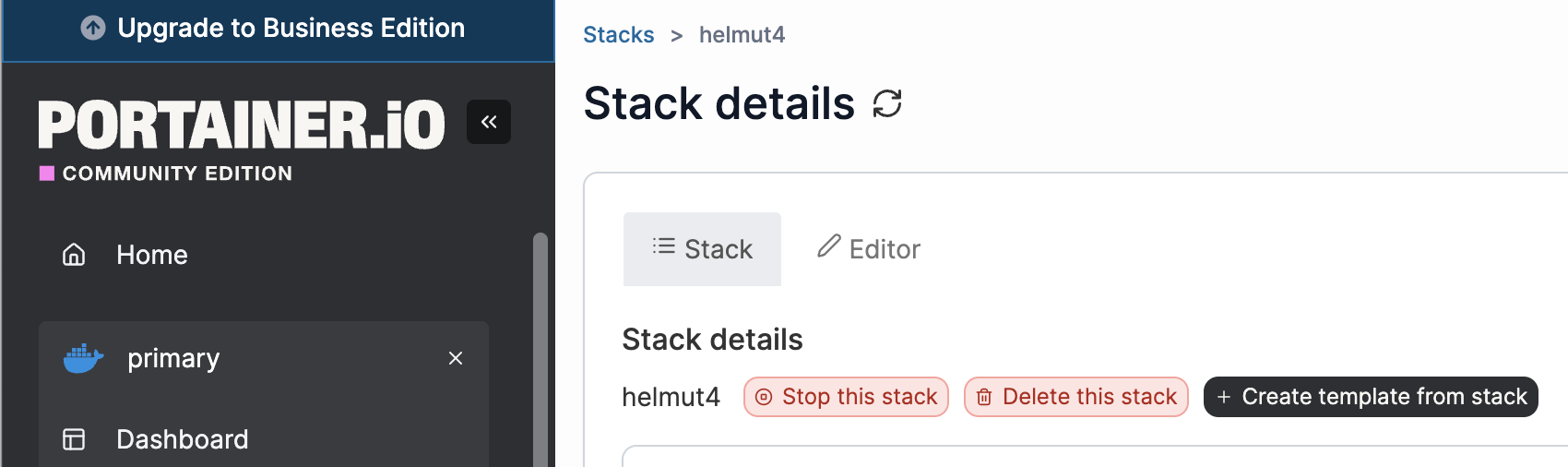
## Step 2 – Stop the System
Stop the Helmut4 stack and wait until **all containers are fully stopped**.
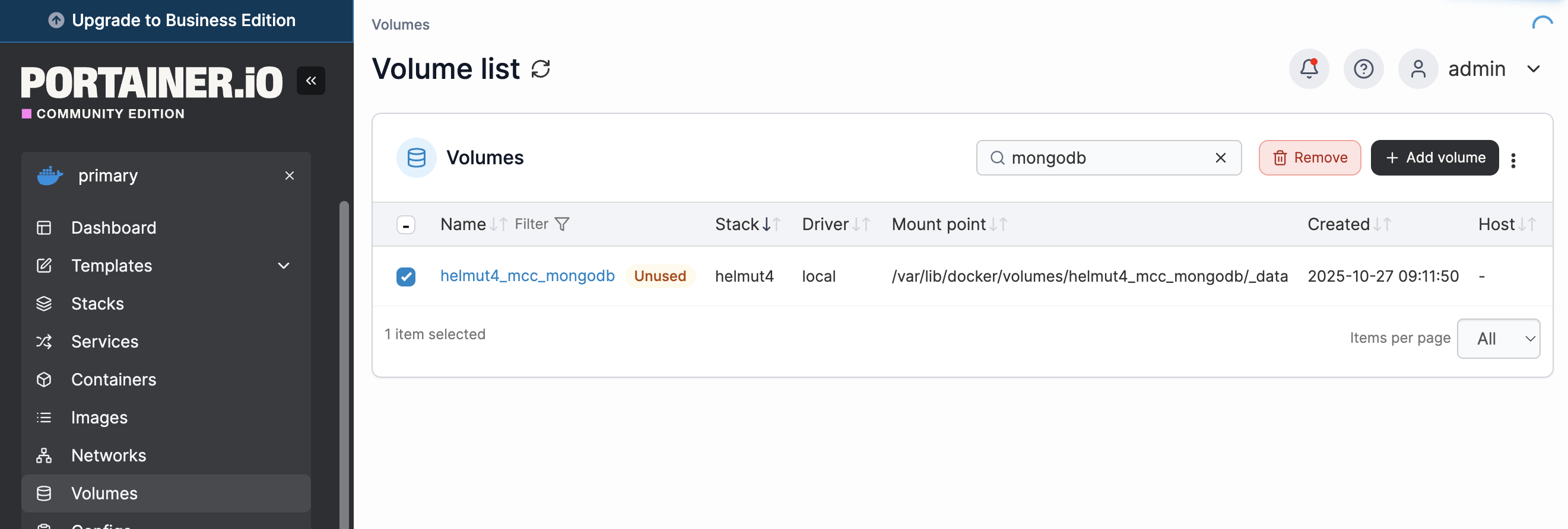
Then open **Portainer → Volumes** and locate:
`helmut4_mcc_mongodb`
{% hint style="danger" %}
## 🚨 This is the **point of no return**. 🚨
Only continue if your backups exist and are accessible.
{% endhint %}
Delete the volume.
If you are running a **cluster environment**, repeat this step on **every worker node**.
***
## Step 3 – Update Container Images
Go to **Portainer → Stacks** and edit the `helmut4` stack.
Locate the following services:
* `mongodb` or `mongodbrs`
* `mongodb_backup`
* `mongoadmin` (to be replaced by mongo-express)
Update **all image versions** to the versions listed in the [Docker Image Version History](/helmut4-releases/release-notes/changelog/docker-image-version-history.md) under the **snapshot tag** [**mongodb\_8**](/helmut4-releases/release-notes/changelog.md#mongodb_8-database-update).
For `mongoadmin`, follow the instructions on the [Mongo Express](/helmut4-releases/getting-started/additional-configurations/mongodb/mongo-express.md) documentation page.
{% hint style="info" %}
We also recommend reviewing the section “[Limit Docker Container RAM Usage](/helmut4-releases/getting-started/additional-configurations/container-adjustments/limit-docker-container-ram-usage.md)” to verify that the configured memory limits are still appropriate for your system, especially for the new mongodb/rs containers!
{% endhint %}
After updating the image tags, save the stack configuration and click "Update the stack".
***
If you are running a **single-server installation**, continue with **Step 5**.\
If you are running a **cluster installation**, proceed with **Step 4**.
***
## Step 4 – Rebuild the MongoDB Replica Set (Cluster only)
If you are running a cluster environment, the MongoDB replica set must be rebuilt after all **`mongodbrs`** containers have started successfully.
Detailed instructions can be found in the [Helmut4 Cluster System](/helmut4-releases/getting-started/installation-guide/helmut4-server/helmut4-cluster-system.md#create-mongodb-replica-set) documentation.\
However, one important change applies to this upgrade:
MongoDB now uses **`mongosh`** instead of the legacy `mongo` shell.
To connect to the `mongodbrs` container, run:
```bash
#establish a connection to the mongodbrs container
#request username + password via email: support@moovit.de
docker exec -it $(docker ps | grep -i mongodb1 | awk '{ print $1 }') mongosh -u USER -p PASSWORD -authenticationDatabase=admin
```
After connecting, rebuild the replica set as described in the cluster documentation.
Once the replica set is operating correctly, continue with **Step 5**.
***
## Step 5 - Configure runtime and system parameters for MongoDB
Recent MongoDB versions require additional runtime, connection, and host-level system settings to ensure stable and reliable operation under normal load.
***
### Step 5.1 - `ulimits` - Limits for resources, processes, threads, and file handles
`nofile` defines the maximum number of open file descriptors. File descriptors are used for various resources, including:
* network sockets
* log files
* database files
* pipes and other I/O handles
In the context of MongoDB, this is important because MongoDB may open:
* many database files
* many client connections
* replication and network sockets
* internal files used by the storage engine
If the `nofile` limit is set too low, MongoDB may run into issues such as:
* “too many open files” errors
* failed client connections
* inability to open data or index files
`nproc` defines the maximum number of processes and threads that the user inside the container may create.
Although the name refers to “processes,” on Linux this limit also effectively affects threads. This is important because MongoDB uses multiple threads for:
* client handling
* background maintenance
* replication
* storage engine tasks
If the `nproc` limit is too low, MongoDB may fail to create additional worker threads under load. This can lead to instability or startup/runtime failures.
Example configuration:
```yaml
mongodb:
image: repo.moovit24.de:443/mcc_mongodb:4.12.0.0
restart: always
volumes:
- /etc/localtime:/etc/localtime:ro
- mcc_mongodb:/data/db
environment:
MONGO_INITDB_ROOT_USERNAME: root
MONGO_INITDB_ROOT_PASSWORD: bitte
ulimits:
nofile:
soft: 64000
hard: 64000
nproc:
soft: 64000
hard: 64000
networks:
- mcc
deploy:
resources:
limits:
memory: 4G
```
***
### Step 5.2 - Define connection pool size and idle timeout for database connections
This setting only applies to **clustered systems**. Single-server systems do not need these parameters.
To manage the connections between the Java containers, especially the Spring Boot services, and MongoDB, it is recommended to define a connection pool together with a dedicated idle timeout.
In a typical three-server cluster environment, each host runs 12 containers, resulting in a total of 36 containers establishing connections to the MongoDB cluster. If connections are not closed properly, the number of occupied connections may steadily increase and eventually lead to connection errors because no free connections remain.
To prevent this, the following containers should have a connection limit and an idle timeout added to them: fx, io, co, hk, users, streams, logging, language, cronjob, preferences and metadata.
#### Connection parameters
```
&maxPoolSize=30&minPoolSize=5&maxIdleTimeMS=60000
```
#### Meaning of the parameters
* `maxPoolSize=30`\
Defines the maximum number of connections that a container may open to MongoDB.
* `minPoolSize=5`\
Ensures that a minimum number of connections are kept ready in the pool.
* `maxIdleTimeMS=60000`\
Closes idle connections after 60,000 milliseconds (60 seconds), helping to free unused connections and prevent unnecessary resource consumption.
Example configuration:
```yaml
language:
image: repo.moovit24.de:443/mcc_language:4.12.0.0
restart: always
deploy:
mode: global
resources:
limits:
memory: 350M
entrypoint: /bin/sh -c 'java -XX:+UseSerialGC -Djava.security.egd=file:/dev/./urandom -Duser.timezone=Europe/Berlin -jar /app/app.jar $${parameters}'
healthcheck:
test: '/usr/bin/curl -f http://localhost:8007/v1/languages/version || false'
interval: 10s
timeout: 5s
retries: 24
environment:
parameters: >
--spring.data.mongodb.uri=mongodb://root:bitte@mongodb1:27017,mongodb2:27017,mongodb3:27017/admin?replicaSet=helmut4&maxPoolSize=30&minPoolSize=5&maxIdleTimeMS=60000
--spring.data.mongodb.host=mongodb
--spring.rabbitmq.host=rabbitmq
--mcc.fx.url=http://fx:8100/v1/fx
--mcc.co.url=http://co:8101/v1/co
--mcc.io.url=http://io:8102/v1/io
--mcc.hk.url=http://hk:8103/v1/hk
--mcc.cronjob.url=http://cronjob:8008/v1/cronjob
--mcc.users.url=http://users:8000/v1/members
--mcc.stream.url=http://streams:8001/v1/streams
--mcc.preference.url=http://preferences:8002/v1/preferences
--mcc.metadata.url=http://metadata:8003/v1/metadata
--mcc.logging.url=http://logging:8004/v1/logging/helmut
--mcc.amqp.url=http://amqp:8005/v1/amqp/send
--mcc.license.url=http://license:8006/v1/license
--mcc.language.url=http://language:8007/v1/language
volumes:
- /etc/localtime:/etc/localtime:ro
networks:
- mcc
depends_on:
- mongodb
```
***
### Step 5.3 - Kernel memory settings for MongoDB 8.x
Recent MongoDB versions require additional host-level kernel memory settings to run reliably and without startup warnings.\
These settings must be configured on every MongoDB host, not inside the container.
#### Required values
* Transparent Huge Pages: `enabled = always`
* THP defrag: `defer+madvise`
* `khugepaged/max_ptes_none = 0`
* `vm.overcommit_memory = 1`
* `vm.swappiness = 1`
These parameters improve MongoDB memory handling and help avoid performance issues caused by swapping or unsuitable huge page behavior.
#### Persist THP settings via systemd
The Transparent Huge Page settings under `/sys/kernel/mm/...` are not persistent after reboot.\
To ensure they are applied automatically before MongoDB starts, create the following systemd service on the host:
```bash
sudo tee /etc/systemd/system/enable-transparent-huge-pages.service >/dev/null <<'EOF'
[Unit]
Description=Enable Transparent Hugepages (THP) for MongoDB
DefaultDependencies=no
After=sysinit.target local-fs.target
Before=mongod.service
[Service]
Type=oneshot
ExecStart=/bin/sh -c '\
echo always > /sys/kernel/mm/transparent_hugepage/enabled && \
echo defer+madvise > /sys/kernel/mm/transparent_hugepage/defrag && \
echo 0 > /sys/kernel/mm/transparent_hugepage/khugepaged/max_ptes_none'
[Install]
WantedBy=basic.target
EOF
```
After creating the service, reload systemd and enable it so it starts automatically on boot:
```bash
sudo systemctl daemon-reload
sudo systemctl enable enable-transparent-huge-pages.service
sudo systemctl start enable-transparent-huge-pages.service
```
#### Persist sysctl settings
The following kernel parameters must be persisted separately via `sysctl`:
```bash
sudo tee /etc/sysctl.d/99-mongodb.conf >/dev/null <<'EOF'
vm.swappiness = 1
vm.overcommit_memory = 1
EOF
sudo sysctl --system
```
#### Verify
Run the following commands to verify the active settings:
```bash
cat /sys/kernel/mm/transparent_hugepage/enabled
cat /sys/kernel/mm/transparent_hugepage/defrag
cat /sys/kernel/mm/transparent_hugepage/khugepaged/max_ptes_none
cat /proc/sys/vm/overcommit_memory
cat /proc/sys/vm/swappiness
```
Expected values:
* \[always]
* \[defer+madvise]
* 0
* 1
* 1
***
## Step 6 – Restore the Backup
After the new MongoDB container(s) are running, the database backup must be restored.
Open a terminal session inside the **`mongodb_backup`** container.\
Instructions on how to open a console session can be found in the documentation section [Restore mongodb\_backup](/helmut4-releases/getting-started/additional-configurations/mongodb/restore-mongodb_backup.md).
Inside the container, execute the following command and wait until the message **“Backup restored”** appears:
```
./restore.sh /backup/
```
Do not interrupt this process. Depending on the database size, the restore may take several minutes.
{% hint style="success" %}
Once the restore has completed, restart the Helmut4 stack.\
This restart is required so all services reload and correctly initialize using the restored database.
{% endhint %}
***
## Step 7 – Verify the System
Helmut4 is now running with the MongoDB v8 database.
Before ending the maintenance window, perform functional checks to confirm the system is operating correctly. We recommend verifying at least the following:
* User login and panel access
* Opening an existing project
* Asset visibility in Cosmo
* Workflow execution (e.g. a small test job or import)
* New assets being created and indexed
If any issues occur, do **not** resume production work.
Please contact support while the maintenance window is still active so the system can be checked and, if necessary, reverted to its previous state.