> For the complete documentation index, see [llms.txt](https://docs.helmut.de/helmut4-releases/llms.txt). Markdown versions of documentation pages are available by appending `.md` to page URLs; this page is available as [Markdown](https://docs.helmut.de/helmut4-releases/v4.10.0/helmut4-components/streamdesigner/stream-debugger.md).
# Stream Debugger
## Debug current stream
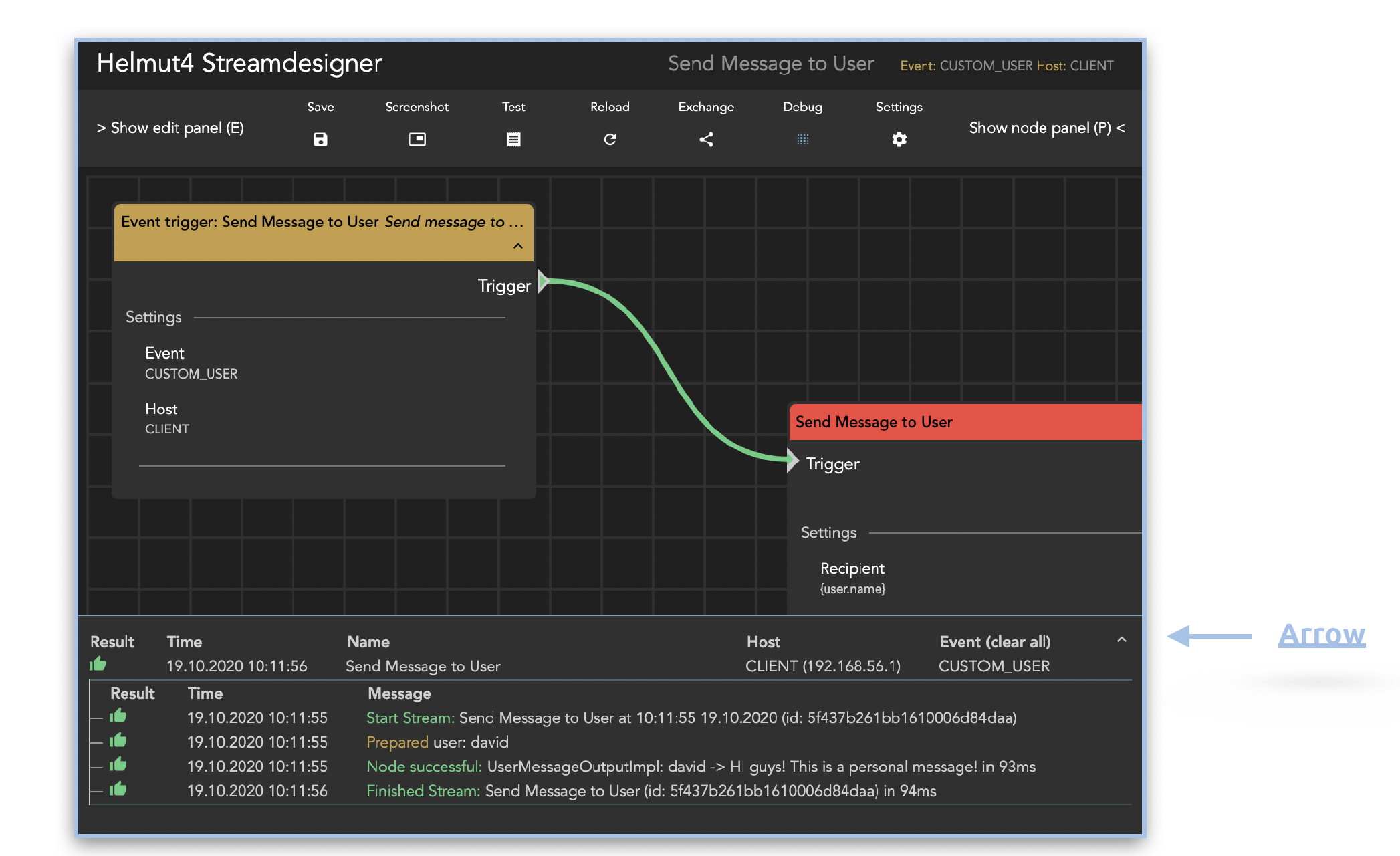
Once a stream has been opened in the Stream Designer, the debug icon in the upper toolbar can be activated to display the debug window at the bottom of the interface.
The debug window will show the real-time output of this stream during execution.
The size of the debug overlay can be expanded to full screen by clicking on the arrow on the right side.
Debug information within the stream designer
## Debug all (running) streams
To monitor and control all processes in accordance with the stream, a global view of the stream debugger can be accessed.
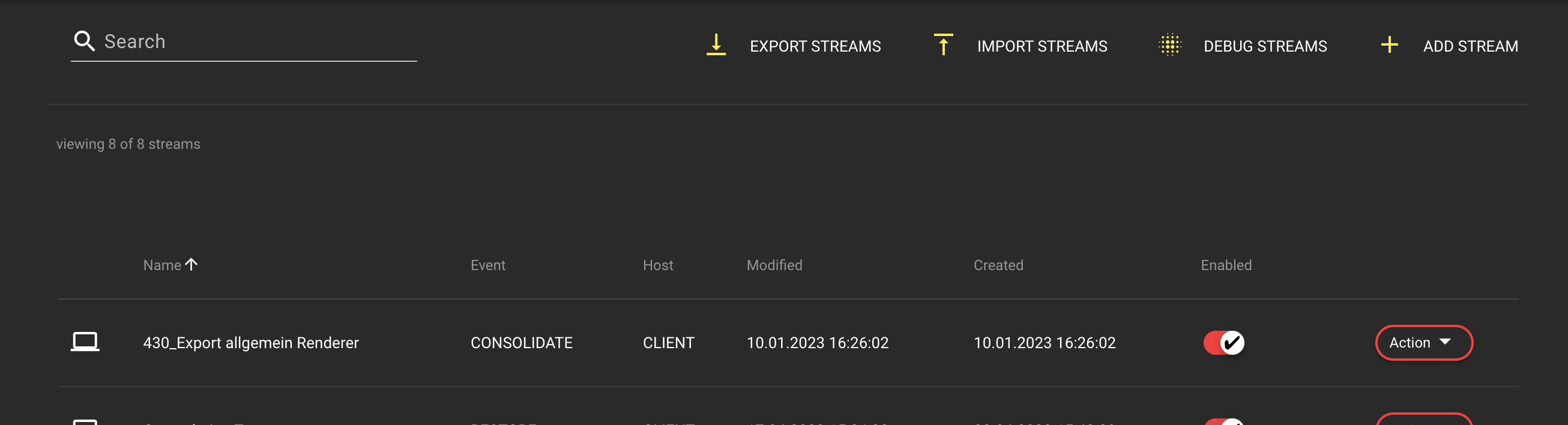
To do so, click on the [Debug Streams](/helmut4-releases/v4.10.0/helmut4-components/helmutfx/streams/debug-streams.md) button (while holding the cmd key in macOS or the ctrl key in Windows), which is located in the [Streams](/helmut4-releases/v4.10.0/helmut4-components/helmutfx/streams.md) tab of FX, IO, CO, and HK . This will open the debug window in a new, dedicated tab.
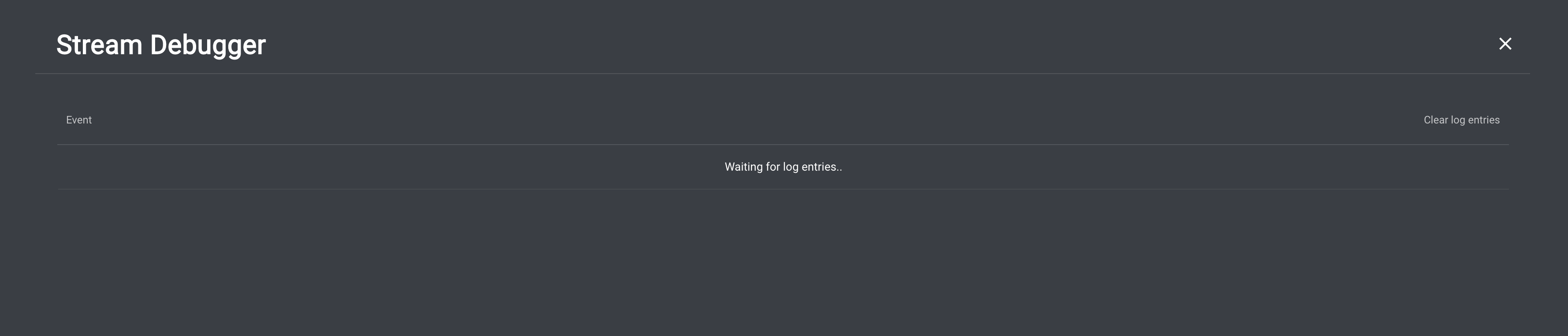
This action opens the stream debugger in a new browser tab, displaying all executed streams.
Debug Streams Button
Global Stream Debugger
Check [Debug Streams](/helmut4-releases/v4.10.0/helmut4-components/helmutfx/streams/debug-streams.md) for more information.