> For the complete documentation index, see [llms.txt](https://docs.helmut.de/helmut4-releases/llms.txt). Markdown versions of documentation pages are available by appending `.md` to page URLs; this page is available as [Markdown](https://docs.helmut.de/helmut4-releases/v4.10.1/helmut4-components/helmutfx/metadata/iframe-third-party-metadata.md).
# iFrame - Third Party Metadata
## iFrame Feature Overview
The **iFrame feature** in Helmut4 allows basic data exchange between Helmut4 and any web-based third-party application — without requiring deep or complex integration.
The exchanged data is treated as the value of a `THIRD_PARTY` type metadata field within Helmut4. This value can then be used throughout the Helmut4 system wherever metadata is applied — such as in FX Projects, CO Assets, IO Jobs, and HK-related project or asset workflows.
### Technical Implementation
This feature uses the [**`window.postMessage()`**](https://developer.mozilla.org/en-US/docs/Web/API/Window/postMessage) method to enable communication between the Helmut4 environment and the embedded third-party application inside the iFrame.\
This method allows secure cross-origin messaging between the parent page (Helmut4) and the embedded iFrame (the third-party app).
#### Sending Data Back to Helmut4
To send data from a third-party app back to Helmut4, the app must use the following approach:
```typescript
const h4url = urlParams.get("h4url"); // Gets the Helmut4 URL for messaging
const payload: string = someData; // If sending an object, use JSON.stringify(someData)
window.parent.postMessage(
payload, // The actual data to send
h4url // The target Helmut4 origin
);
```
#### CORS Requirements
In order for this communication to work, the third-party application must also configure **Cross-Origin Resource Sharing (CORS)** settings to allow the Helmut4 domain to embed it via iFrame. This typically means updating the server configuration to include Helmut4’s domain in the `Access-Control-Allow-Origin` header.
## Setup in Helmut4 – Creating a Project with a Third-Party iFrame
#### Step 1: Create a Metadata Field
1. In Helmut4, create a new metadata field.
2. Set the **type** to `THIRD_PARTY`.
3. In the **Default value** field, enter the URL of the third-party web application.
> ✅ Example:\
> For testing, you can spin up a local web server at `http://127.0.0.1:9999` that serves a basic HTML page with a dropdown. The selected value from this page will be sent back to Helmut4.
iFrame metadata - third party
🧪 Local Test Web Server for iFrame Integration
Make sure your HTML file is named **`index.html`**, and use the code provided in the [Example HTML Page](#step-2-example-html-page-third-party-app) section for the test payload.
**macOS:**
```sh
cd /path/to/your/html/files
python3 -m http.server 9999
```
**Windows:**
```powershell
$filepath = "C:\temp\index.html"
Start-Process powershell -ArgumentList "-NoExit", "-Command", {
param($filepath)
Add-Type -AssemblyName System.Net.HttpListener
$listener = New-Object System.Net.HttpListener
$listener.Prefixes.Add("http://localhost:9999/")
$listener.Start()
Write-Host "Serving on http://localhost:9999/"
while ($listener.IsListening) {
$context = $listener.GetContext()
$response = $context.Response
$html = Get-Content $filepath -Raw
$buffer = [System.Text.Encoding]::UTF8.GetBytes($html)
$response.ContentLength64 = $buffer.Length
$response.OutputStream.Write($buffer, 0, $buffer.Length)
$response.Close()
}
} -ArgumentList $filepath
```
#### Step 2: Example HTML Page (Third-Party App)
Here is the code for a simple web page (index.html) that sends a selected value back to Helmut4:
```html
Third Party App
Welcome to the third-party app
```
{% hint style="danger" %}
Note: Ensure your server has proper CORS settings to allow embedding in Helmut4.
{% endhint %}
#### Step 3: Assign Metadata to a Group
1. Assign the newly created `THIRD_PARTY` metadata field to a metadata group.
2. Open the **Add Project** dialog using that group.
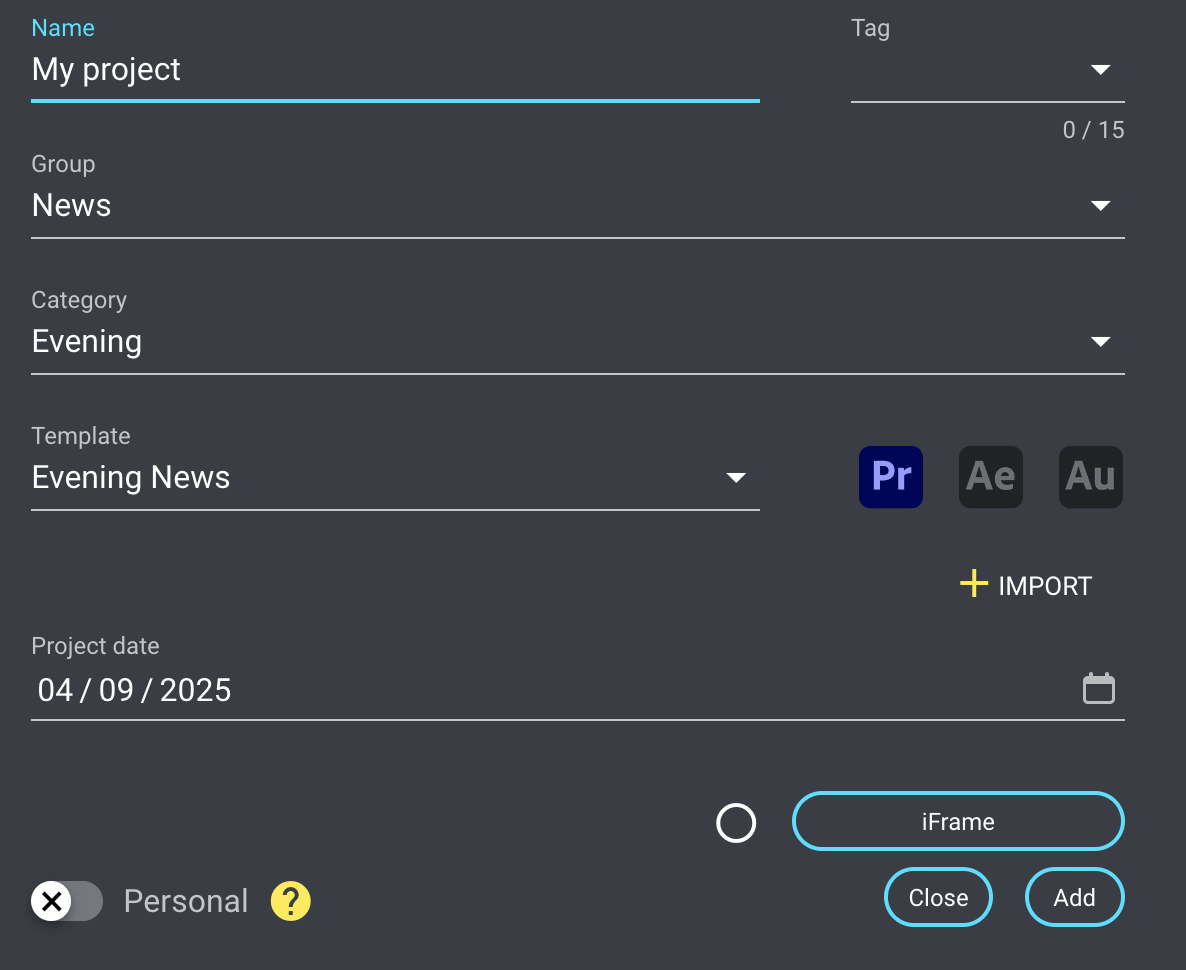
3. You’ll see the new metadata field as a button with the same label as the field name.
* A white circle means no value is currently set.
iFrame metadata in create project dialog
#### Step 4: Use the iFrame Modal
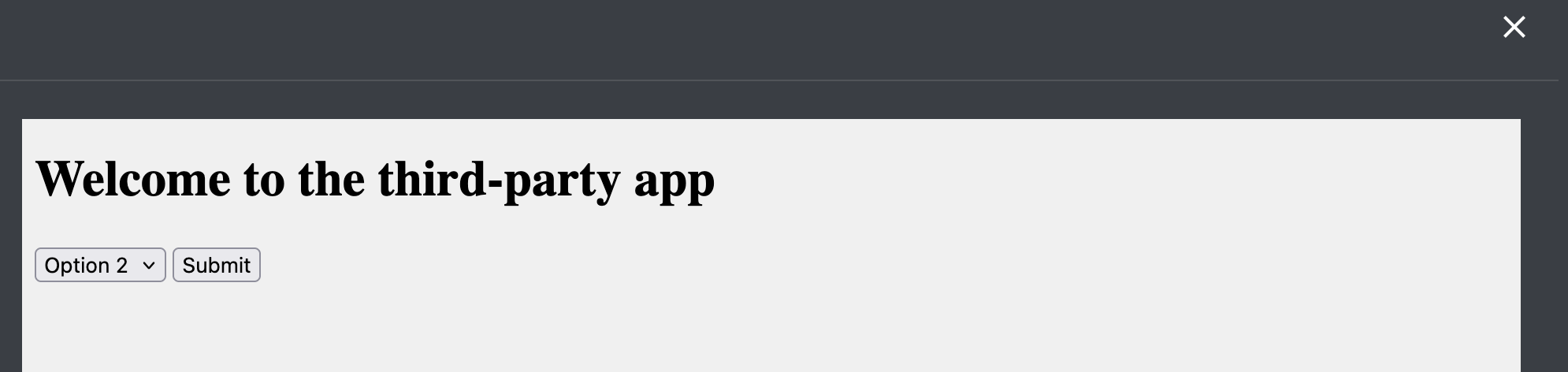
1. Click the metadata button. This opens a modal with the embedded iFrame, displaying the third-party web page (e.g., with the dropdown).
2. Choose an option and click **Submit** on the third-party app.
3. The modal closes automatically, returning you to the **Add Project** dialog.
* The metadata button will now indicate that a value is set.
Choose an option
#### Step 5: Visualize and Reset the Value
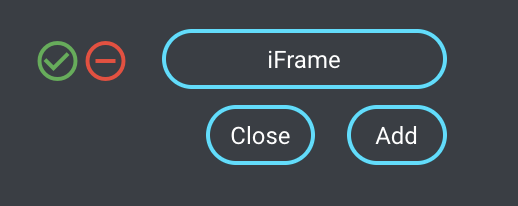
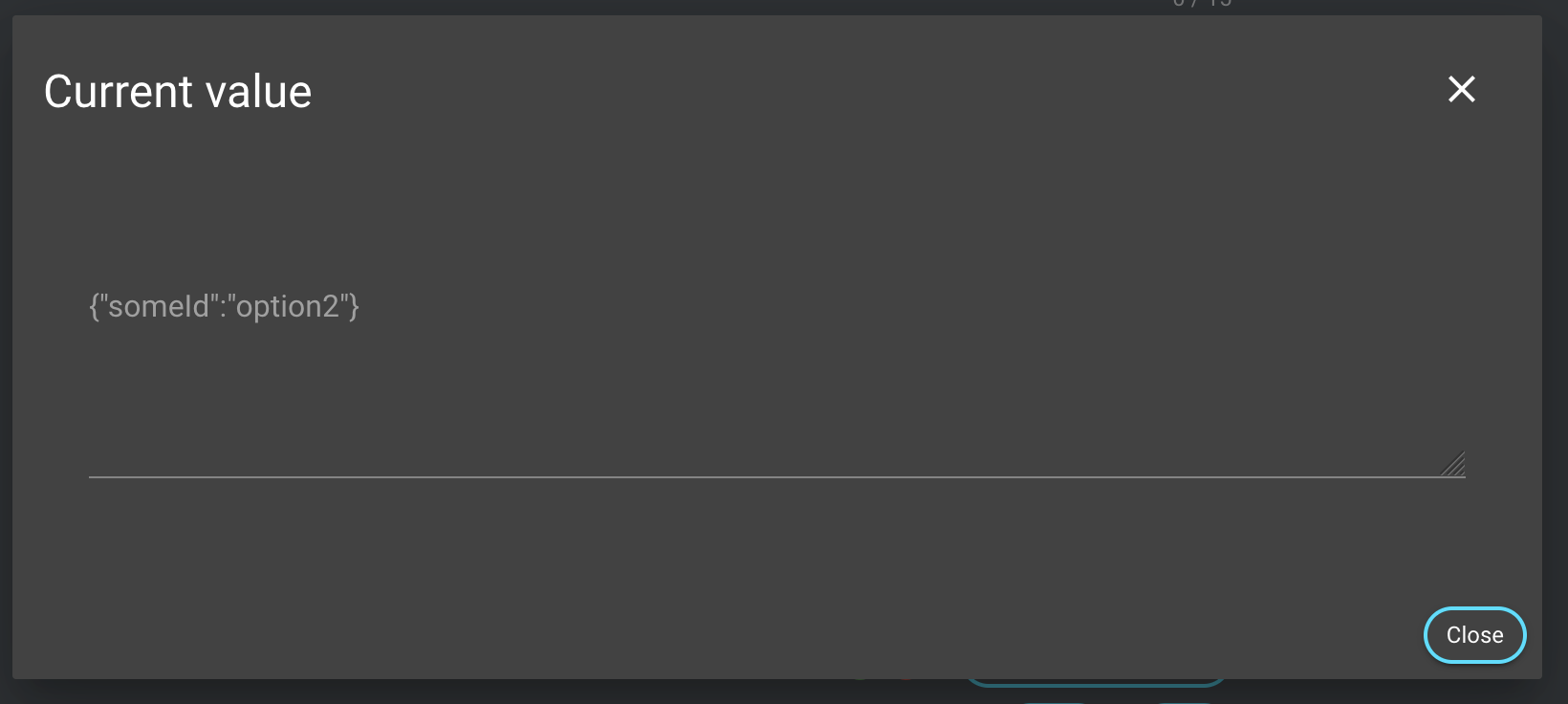
* ✅ Click the **checkmark icon** next to the metadata field to preview the current value.
* ❌ Click the **minus icon** to remove the value and reset the field.
Verify or remove iFrame data
View metadata from iFrame vai verify button
#### Step 6: Add the Project
When you create the project:
* The metadata key/value pair is passed into the **create project stream**.
* The data can then be post-processed.
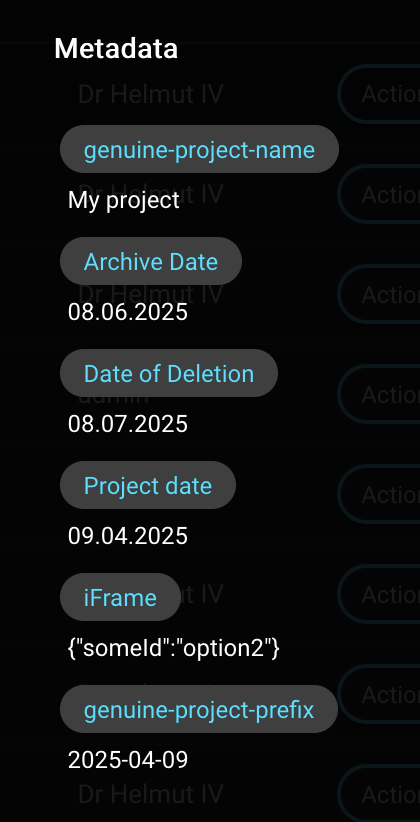
* In this example, the selected value is simply assigned to the project object without further modification.