# Helmut4 Cluster System

## Pre-Installation checklist

Please refer to the article [Pre-installation check](https://docs.helmut.de/helmut4-releases/v4.11.0/getting-started/installation-guide/helmut4-server/..#pre-installation-check) for further details.

{% hint style="info" %}
Before continuing with the cluster installation, be sure to check the network configuration described in the article [Optional network adjustment](#optional-network-adjustment).
{% endhint %}

## Installation

The installation of this system has higher complexity compared to a single-server instance, necessitating [additional preparations](https://docs.helmut.de/helmut4-releases/v4.11.0/getting-started/tech-specs/helmut4-server) in advance.

### Docker Swarm - Cluster Prerequisites

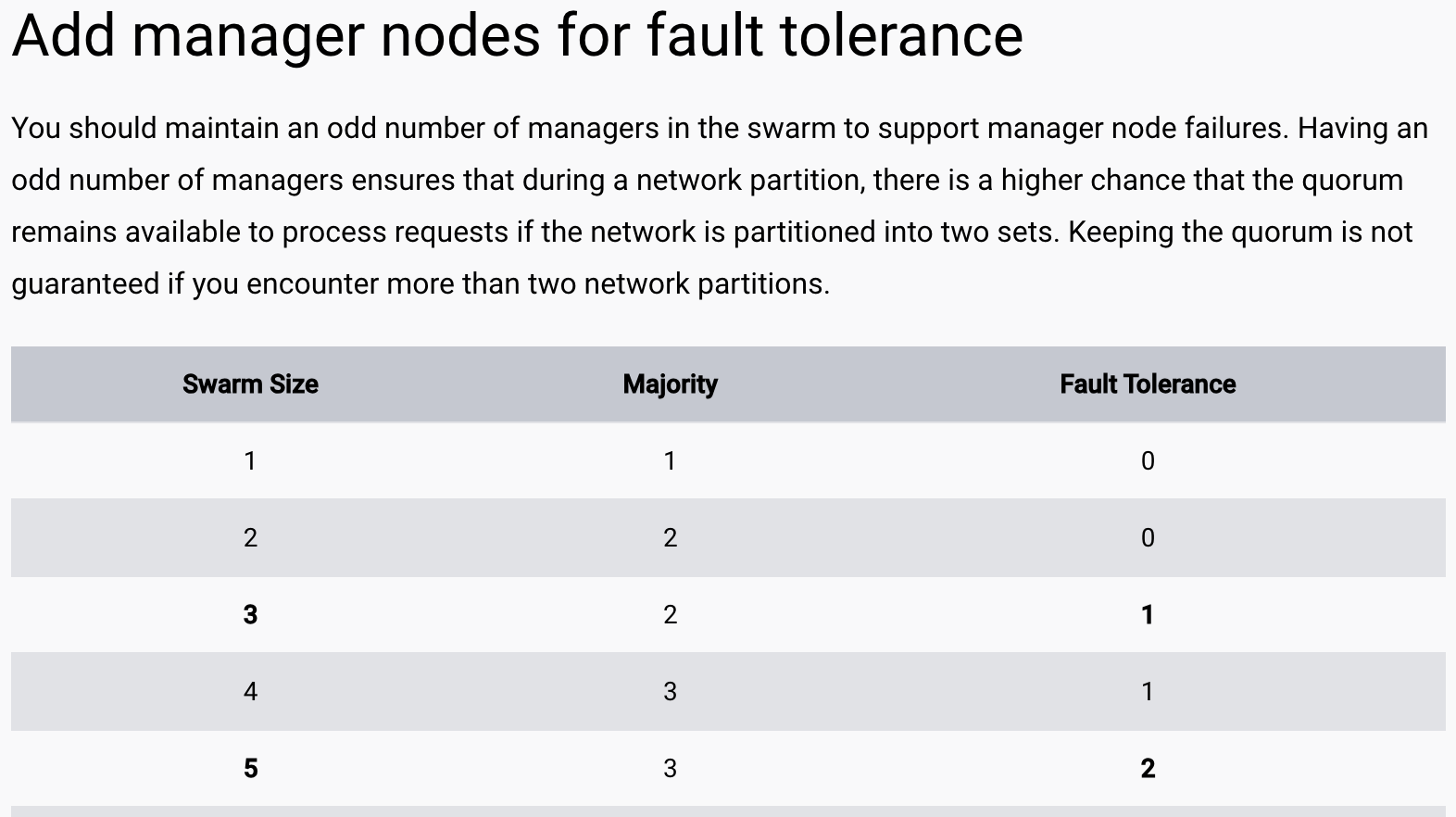
Ensure that you thoroughly review the [official Docker Swarm documentation](https://docs.docker.com/engine/swarm/admin_guide/) beforehand to comprehend the technical architecture, particularly in scenarios where one or multiple worker nodes may not be available.

<figure><img src="https://content.gitbook.com/content/MDOObhR5m91Ea2DZ1Pfu/blobs/08QQD6PZVREpgXH91YsD/image.png" alt=""><figcaption><p>Docker swarm - fault tolerance<br><a href="https://docs.docker.com/engine/swarm/admin_guide/#add-manager-nodes-for-fault-tolerance">https://docs.docker.com/engine/swarm/admin_guide/#add-manager-nodes-for-fault-tolerance</a></p></figcaption></figure>

### DNS / SSL / Load Balancer

For optimal performance, customers are advised to deploy an external load balancer to efficiently distribute incoming traffic across available machines.\
The load balancer can be implemented as a dedicated hardware appliance, a software-based solution, or via a DNS-based routing configuration, depending on deployment needs and performance requirements.\
Additionally, a dedicated [SSL certificate](https://docs.helmut.de/helmut4-releases/v4.11.0/getting-started/additional-configurations/enable-https-set-ssl-certificate)—with an associated DNS name—must be configured to ensure secure, encrypted communications.

For ease of access, it is also recommended to use a user-friendly DNS name (e.g., "helmut4") rather than relying on IP addresses or long, complex DNS names, simplifying access for end user

{% hint style="warning" %}
Please note that both the external load balancer and the SSL certificate are required to be provided by the customer.
{% endhint %}

## Prerequisites

Before commencing the installation, ensure seamless communication between the servers via the network. Consider storing the hostname-IP/DNS reference in /etc/hosts.

Ensure that ***no pre-configured*** Docker or Portainer is already installed on the system.

### Network storage

Helmut4 is storage-agnostic, meaning the system requires at least one share to function properly, though it can work with multiple shares. Each share must be mounted on the Linux host system and within specific Docker containers.

Ensure at least one storage is mounted via fstab before initiating the installation, as it is essential for the process.

***This step needs to be performed on every server individually.***

### Docker environment

As Helmut4 operates within a Docker environment, the installation of these components is necessary. If the host is in a restricted network, it may be required to install these components in advance or temporarily allow access to the corresponding repositories.

***This installation must be carried out individually on each server.***

Please refer to the Docker installation guidelines provided in the [official docker documentation](https://docs.docker.com/engine/install/)

{% code lineNumbers="true" %}

```bash
sudo apt-get update && \
sudo apt-get install -y ca-certificates curl gnupg && \
sudo install -m 0755 -d /etc/apt/keyrings && \
curl -fsSL https://download.docker.com/linux/ubuntu/gpg | sudo gpg --dearmor -o /etc/apt/keyrings/docker.gpg && \
sudo chmod a+r /etc/apt/keyrings/docker.gpg && \
echo "deb [arch=$(dpkg --print-architecture) signed-by=/etc/apt/keyrings/docker.gpg] https://download.docker.com/linux/ubuntu $(. /etc/os-release && echo $VERSION_CODENAME) stable" | sudo tee /etc/apt/sources.list.d/docker.list > /dev/null && \
sudo apt-get update && \
sudo apt-get install -y docker-ce docker-ce-cli containerd.io docker-buildx-plugin docker-compose-plugin
```

{% endcode %}

### Additional dependencies

In addition, these two dependencies are required for Helmut4:

* httpie
* jq

```bash
sudo apt install -y httpie jq
```

### Docker swarm configuration

Initiate SSH connections to all servers and execute the following command on the **initial server** host:

```bash
docker swarm init && \
docker swarm join-token manager
```

<details>

<summary>Host / VM with multiple IP addresses:</summary>

If a VM has more than one IP address, you must assign Docker Swarm to a specific IP address using the following command:

```sh
docker swarm init --advertise-addr <ip-address>
```

For further details, please refer to the [Docker Swarm documentation](https://docs.docker.com/reference/cli/docker/swarm/init/#advertise-addr).

</details>

Copy the provided token and paste it onto all **other hosts** to designate them as managers:

```bash
#structure of the token
docker swarm --token <join-token> <vmhostname>:2377
```

Verify the newly created Swarm cluster by executing the following command:

```bash
docker node ls
```

```
Example result of a successful docker swarm
ID                            HOSTNAME     STATUS    AVAILABILITY   MANAGER STATUS
aw9wmcjh35rk6 *   h4-swarm01   Ready     Active         Leader           28.0.2
a3hfmdjrafsty     h4-swarm02   Ready     Active         Reachable        28.0.2
91dnkzq3kg7y4     h4-swarm03   Ready     Active         Reachable        28.0.2
```

### Portainer configuration

Following the successful installation of the Docker environment and the creation of the Swarm cluster, it is essential to set up Portainer **on each host**.

The provided command will download and install the latest (lts tag) community edition (ce) version of Portainer.

For more details on Portainer's release versions and editions, please refer to the following resources:

* **Latest (LTS) & Short-Term (STS) Versions:**\
  Learn about the new features and differences in the latest LTS and STS branches in this blog post: [What's New in the Portainer STS Branch and Other Portainer News](https://www.portainer.io/blog/whats-new-in-the-portainer-sts-branch-and-other-portainer-news).
* **Community Edition (CE) vs. Business Edition (EE):**\
  Discover the distinctions between Portainer's Community Edition and Business Edition in this detailed comparison: [Portainer Community Edition (CE) vs. Portainer Business Edition (EE): What's the Difference](https://www.portainer.io/blog/portainer-community-edition-ce-vs-portainer-business-edition-be-whats-the-difference).

```bash
docker run -it -d --restart=always -p 9000:9000 --name=portainer -v /var/run/docker.sock:/var/run/docker.sock -v portainer_data:/data portainer/portainer-ce:lts --admin-password='$2y$05$WbcqfTqVa2T58lGrLO7Tp.30DMjKFo.6O4.XAmfBFg4a0jrVSbdW.' -H unix:///var/run/docker.sock
```

{% hint style="info" %}
By default, the Helmut4 installation script / installation guideline installs Portainer CE (Community Edition). Switching from CE to EE (Business Edition) can be done without any issues.

*However, please note that EE requires a valid license.*\
\
For updating Portainer, please follow the instructions in the [Docker & Portainer Update](https://docs.helmut.de/helmut4-releases/v4.11.0/getting-started/upgrade-guide/helmut4-server/docker-and-portainer-update) guide.
{% endhint %}

\
Proceed to the main host and access Portainer, which operates on port 9000:

{% hint style="info" %}
**Portainer web GUI**\
<http://ip-helmutserver:9000>
{% endhint %}

The default login credentials are set to admin/admin.

We strongly recommend changing this password *as soon as possible*!

### Setting up MoovIT docker repository

Navigate to Registries and configure a new custom repository.

<details>

<summary>MoovIT registry for Portainer</summary>

Name: MoovIT GmbH\
URL: repo.moovit24.de:443\
Authentication: true\
Username: request via email: <support@moovit.de>\
Password:  request via email: <support@moovit.de>

It is important to write the URL at the end with :443, otherwise the images will not be loaded when deploying the Helmut stack!

</details>

***Repeat*** this steps ***on every other host***.

## Deploy cluster stack

Download the stack file for the cluster from this link:&#x20;

```
https://repo.moovit24.de/install/config/docker-compose-swarm.yml
```

Navigate to Portainer on the main host and create a new stack:

```
Primary -> Stacks -> Add stack
Name: helmut4
Web editor: paste content from the .yml file

Please consider to change the hostnames in the mongodbrs images to
match the existing hostnames!
```

Click 'Deploy' and wait until all instances of the 'mongodbrs' container have been deployed to every host before proceeding with the next steps.

### Create mongodb replica set

Now, create a MongoDB replica set. Establish an SSH connection to the main host and execute the following commands:

```bash
#establish a connection to the mongodbrs container
#request username + password via email: support@moovit.de
docker exec -it $(docker ps | grep -i mongodb1 | awk '{ print $1 }') mongo -u USER -p PASSWORD -authenticationDatabase=admin

#create new replica set
rs.initiate()

#add nodes to the replica set
rs.add("mongodb2:27017")
## --> if you got an error 74 and running on a Virtual Maschine on VMWare
## (Quorum check failed ... nodes did not respond affirmatively: mongodb2:27017 ... Couldn't get a connection within the time limit")
## Please check the following information
## --> https://docs.helmut.de/helmut4-releases/getting-started/installation-guide/helmut4-server/helmut4-cluster-system#possible-network-adjustments-eg-for-vmware-esxi
rs.add("mongodb3:27017")

config=rs.config()

#set master
config.members[0].host="mongodb1:27017"
rs.reconfig(config,{force:true})

#verify replica set
rs.status()


#define mongodb priority: primary-secondary
var c = rs.config()
#mongodb1 = primary
c.members[0].priority = 2
#mongodb2 = secondary
c.members[1].priority = 1
#mongodb3 = secondary
c.members[2].priority = 1

#save priority configuration
rs.reconfig(c,{force: true})

#list primary mongodb
rs.status().members.find(r=>r.state===1).name
```

We recommend manually [updating](#updating-helmut4) Helmut4 to the latest snapshot release following the completion of the previous configuration steps.

## Misc configuration

### Snapshot Server version

On every host, create a text file containing the current snapshot version.

```bash
mkdir /etc/helmut4
echo "4.11.0" > /etc/helmut4/helmut4.snapshot
```

### Helmut4 Server update script

Configure the 'helmut-update' and 'helmut-snapshot' commands, both of which are employed for updating Helmut4.

```bash
#Ubuntu/CentOS
echo -e "#/bin/bash\\ncurl -s https://repo.moovit24.de/install/update.sh | bash" > /usr/sbin/helmut-update && chmod a+x /usr/sbin/helmut-update
echo -e "#/bin/bash\\ncurl -s https://repo.moovit24.de/install/snapshot.sh | bash -s \${1}" > /usr/sbin/helmut-snapshot && chmod a+x /usr/sbin/helmut-snapshot

#Debian
echo -e "#/bin/bash\\ncurl -s https://repo.moovit24.de/install/update.sh | bash" > /usr/bin/helmut-update && chmod a+x /usr/bin/helmut-update
echo -e "#/bin/bash\\ncurl -s https://repo.moovit24.de/install/snapshot.sh | bash -s \${1}" > /usr/bin/helmut-snapshot && chmod a+x /usr/bin/helmut-snapshot
```

### Mount network shares into Docker

Each drive intended for system inclusion must undergo mapping into the container. This involves first mounting the drive at the operating system level. Once mounted at the operating system level, the drive is then mapped into the Docker container using the following process:<br>

{% hint style="info" %}
Drive on operating system level: **/mnt/helmut**

Drive on Docker container level: **/Volumes/helmut**

Drive mapped between operation system level and Docker container: **/mnt/helmut\_1:/Volumes/helmut\_1**
{% endhint %}

The 'mnt to Volumes' mapping is established to facilitate seamless workflows on Mac OS X, with every network share being mounted to /Volumes.

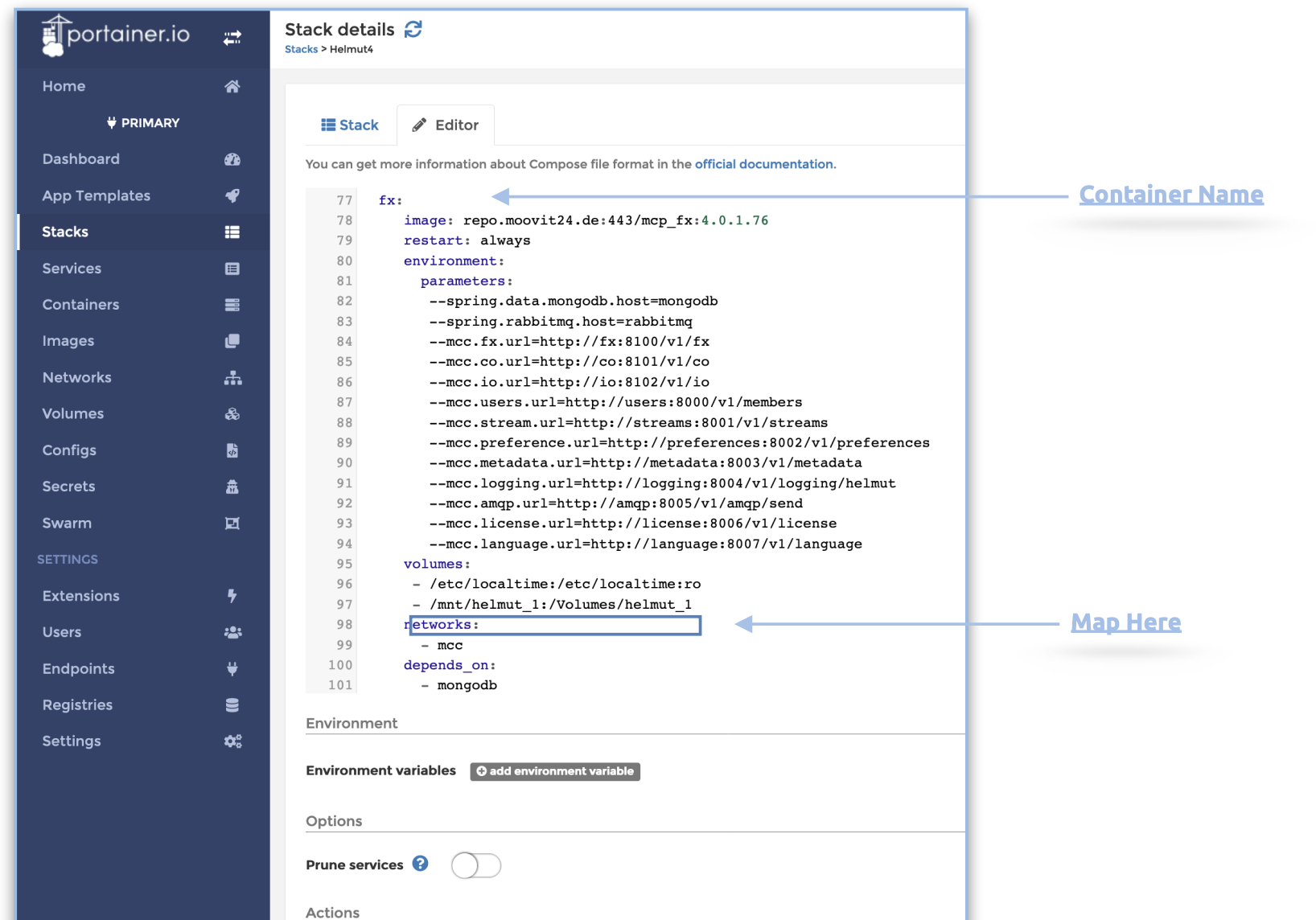
There are five distinct containers that consistently require access to specific volumes to execute designated tasks. For instance, if the server is tasked with creating projects on a designated volume, that volume must be mapped into the FX Container, as this container is responsible for project creation.

To add a volume to a container, follow these steps:

* click on “primary”
* click on “stacks”
* click on “helmut4”
* click on the tab “Editor"

Locate the following services (fx, io, co, streams, users) and adjust the volumes entry accordingly.<br>

<figure><img src="https://content.gitbook.com/content/MDOObhR5m91Ea2DZ1Pfu/blobs/8XBTSB9kJQJQAEEvAIDK/image.png" alt=""><figcaption><p>Configure images within stack</p></figcaption></figure>

Include or modify the volumes as needed, and click 'Update Stack' once you have completed this task.

{% hint style="info" %}
For instance, include the shared folder 'testing,' mapped on the host, into the directory /mnt/testing.

\
volumes:&#x20;

&#x20;   \- /etc/localtime:/etc/localtime:ro

&#x20;   \- /mnt/helmut:/Volumes/helmut

&#x20;   **- /mnt/testing:/Volumes/testing**
{% endhint %}

### Setting up mongobackup volume

For additional information, please navigate to the following link: [Define mongobackup volume](https://docs.helmut.de/helmut4-releases/v4.11.0/getting-started/additional-configurations/define-mongodb_backup-volume)

## Optional network adjustment

<details>

<summary>Consider potential network adjustments, such as those applicable to VMware ESXi.</summary>

On certain hosts, such as VMware, it may be necessary to adjust the network interface settings. If not all containers are starting, consider checking the checksum settings on each host/network adapter.

Retrieve the current status by executing the following command on each host, replacing 'INTERFACENAME' with your specific interface name (e.g., eth0, ens32, etc.).

```sh
ethtool -k <INTERFACENAME> 2>&1 | egrep 'tx-checksumming|rx-checksumming'
```

Working result:\
rx-checksumming: off\
tx-checksumming: off

Not working result:\
rx-checksumming: on\
tx-checksumming: on

If your result is 'on,' it is necessary to disable checksumming.

Use the following commands to persistently set tx/rx checksum to 'off' after reboot on Ubuntu TLS:

```sh
nano /etc/networkd-dispatcher/routable.d/10-disable-rxtxchecksum
```

Add the following content and replace it with your INTERFACE NAME (e.g., eth0, ens32, etc.):

```sh
#!/bin/sh
ethtool -K <INTERFACENAME> tx off rx off
```

Save the script and adjust file permissions. Afterward, reboot the host:

```sh
chmod +x /etc/networkd-dispatcher/routable.d/10-disable-rxtxchecksum && reboot
```

After the server reboots, verify the checksum status:

```sh
ethtool -k <INTERFACENAME> 2>&1 | egrep 'tx-checksumming|rx-checksumming'
```

</details>

## Updating Helmut4

Helmut 4 offers two update channels - main/stable and development.

{% hint style="info" %}
For more information, please refer to the [Upgrade Guide - Helmut4 Server](https://docs.helmut.de/helmut4-releases/v4.11.0/getting-started/upgrade-guide/helmut4-server) section.
{% endhint %}