> For the complete documentation index, see [llms.txt](https://docs.helmut.de/helmut4-releases/llms.txt). Markdown versions of documentation pages are available by appending `.md` to page URLs; this page is available as [Markdown](https://docs.helmut.de/helmut4-releases/v4.11.0/helmut4-components/helmuthk/cron/add-cron-job.md).
# Add Cron Job
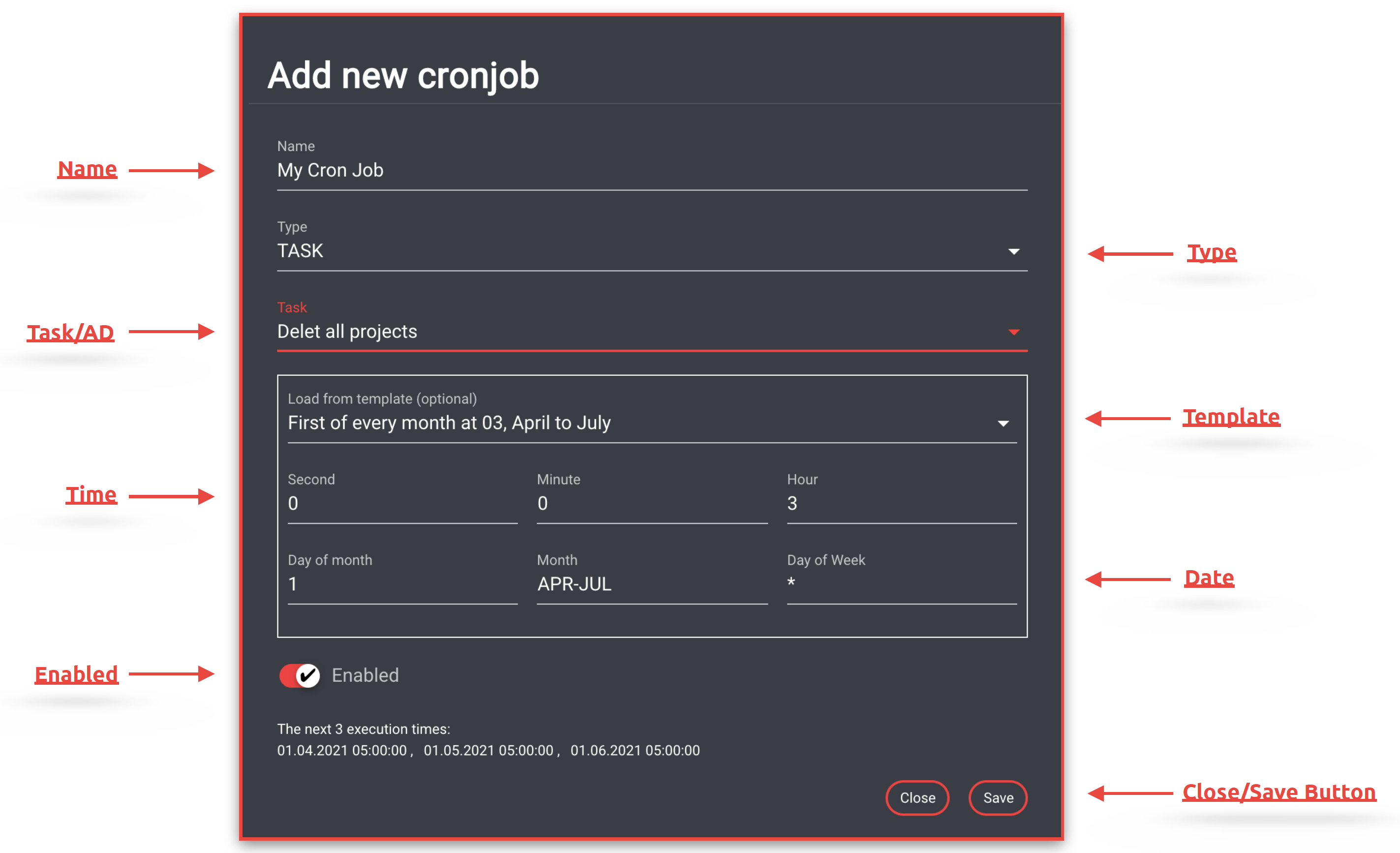
Clicking the "Add new cronjob" button opens a dialog that allows you to define the following parameters:
Add New Cronjob
### Name
Free text field for specifying the desired name for the new cron job to be created.
### Type
A drop-down menu to select the desired type. Choose between the following options:
* [Task](/helmut4-releases/v4.11.0/helmut4-components/helmuthk/tasks.md)
* [Active Directory](/helmut4-releases/v4.11.0/helmut4-components/helmutfx/preferences/modules/active-directory-auto-module.md)
* [Watchfolder](/helmut4-releases/v4.11.0/helmut4-components/helmutio/wachfolder.md)
### Task
A drop-down menu to select the desired task, watchfolder, or the desired Active Directory. The field name changes depending on the previously selected type.
* AD can only be used, if a group has been set up within the [Active Directory Auto Module](/helmut4-releases/v4.11.0/helmut4-components/helmutfx/preferences/modules/active-directory-auto-module.md).
* Watchfolder can only be used if the watchfolder mode has been set to cron.
### Template
A drop-down menu for selecting one of the predefined templates. When a template is selected, the time and date are automatically filled in.
### Cron configuration
#### Introduction to cron
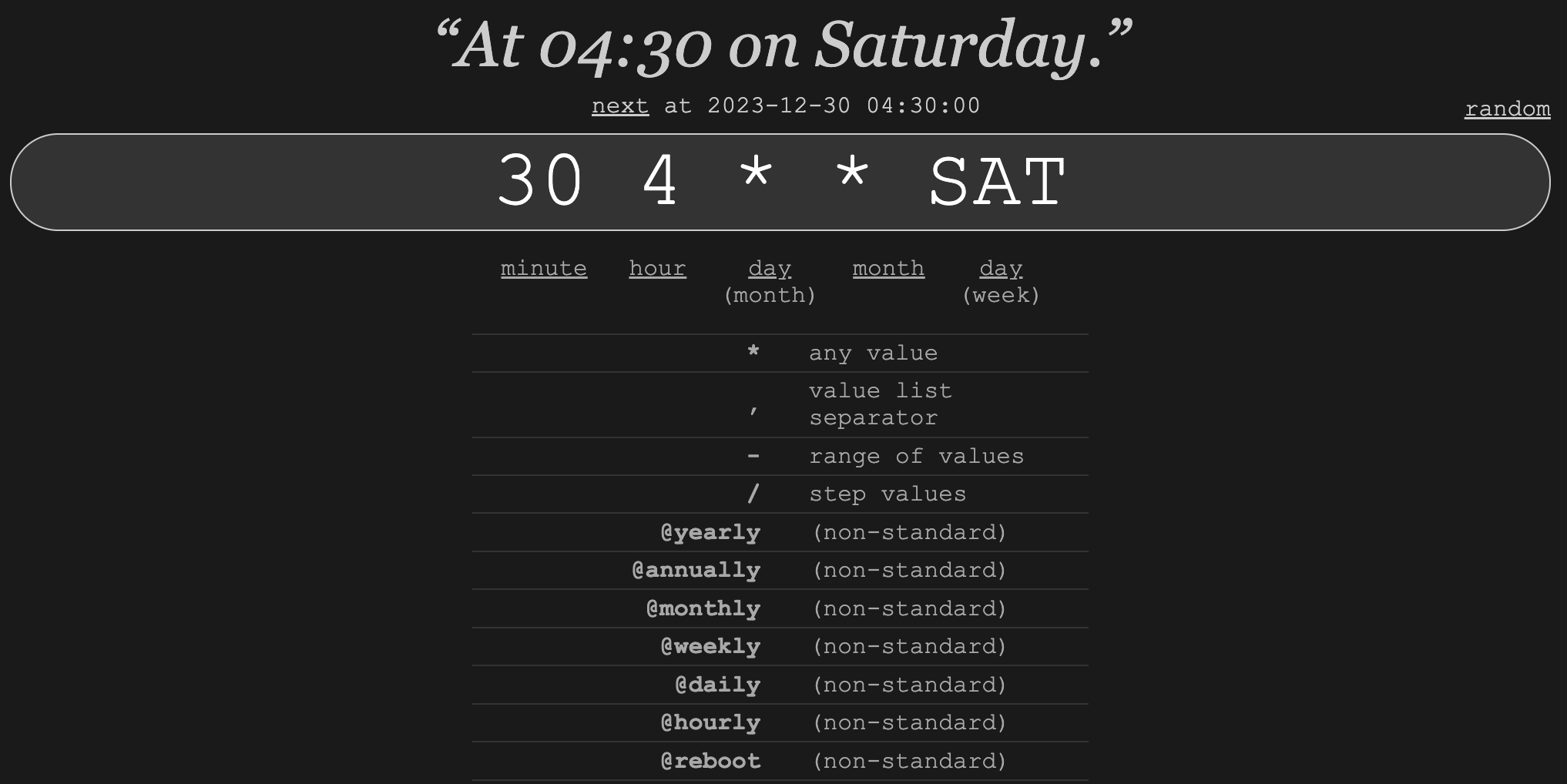
To familiarize yourself with cron, please head to [crontab.guru](https://crontab.guru/), which provides a user-friendly GUI for setting up a cron.
Defining a cron time is a straightforward task. For instance, if the cron is intended to run every Saturday at 4:30, the corresponding cron expression would be: `30 4 * * SAT`.
The visual reference below describes the [parameters of this string](https://crontab.guru/#30_4_*_*_SAT).
Example cron time from crontab.guru
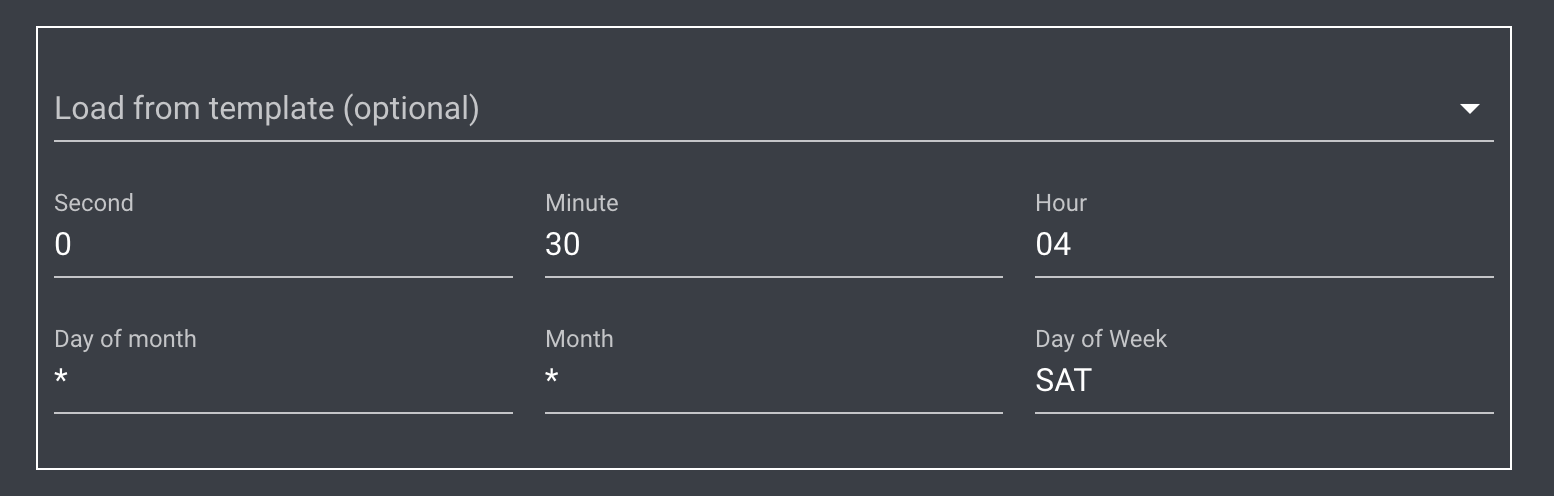
The Helmut cron is using a slightly varied version of cron, but it correctly adheres to the syntax.
Example execution in HK cron
#### Time
Defines the time at which the selected task should be executed. If only one time is selected, the task will be executed at that time every day. If a time is combined with a date, the selected time only applies to the selected days/months.
#### Date
Defines a date on which the selected task should be executed. If only one date is selected, the task will run at 00:00 on that day. If a date is combined with a time, the selected date will be executed at the selected time.
### Enabled
Enables or disables the status of the cron job.
### Save/Cancel Button
Clicking "Save" closes the dialog and saves the profile.\
Clicking "Cancel" or the "X" closes the dialog without saving.