> For the complete documentation index, see [llms.txt](https://docs.helmut.de/helmut4-releases/llms.txt). Markdown versions of documentation pages are available by appending `.md` to page URLs; this page is available as [Markdown](https://docs.helmut.de/helmut4-releases/helmut4-components/streamdesigner/nodes/actions/job-action/job-create-job-action.md).
# Job Create Job Action
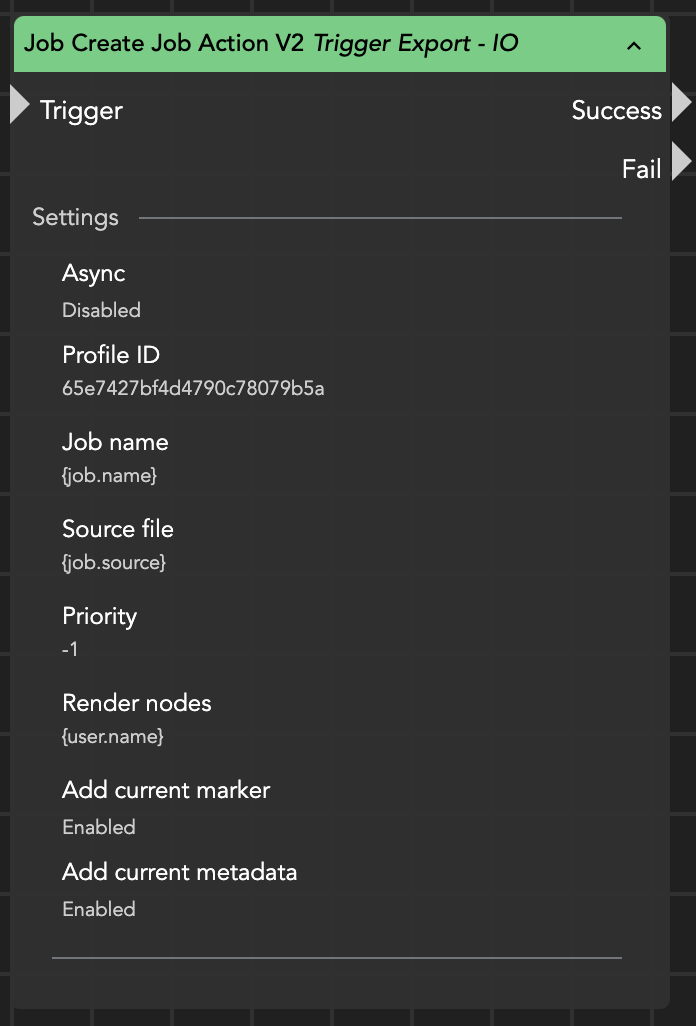
The Job Create Job Action node creates a new Helmut job directly from within a stream, without requiring the job to originate from a standard workflow such as Auto Import, Web Import, Export, or Watchfolder.
The node can trigger any compatible IO, CO, or HK profile by specifying its Profile ID. In addition to the profile, the job name, source file, priority, preferred render node(s), markers, and metadata can be configured.
The Profile ID of a profile can be found in the hidden overlay of the corresponding profile.
This node is particularly useful for building modular workflows where one stream automatically creates follow-up jobs for additional processing.
Job Create Job Action
***
### Input Parameters
#### Profile ID
The ID of the IO, CO, or HK profile that should process the newly created job.
***
#### Job Name
Defines the display name of the new job.
Wildcards may be used.
Example:
```
Indexing project '{project.name}'
```
***
#### Source File
(Optional)
Defines the source file that will be associated with the newly created job.
If left empty, the triggered profile will determine how the source file is handled.
***
#### Priority
(Optional)
Defines the priority of the new job.
Priority 1 represents the highest priority.
Using -1 preserves the priority configured on the selected profile.
***
#### Render Nodes
(Optional)
Defines a comma-separated list of render node names that are allowed to pick up the new job.
Wildcards may be used.
Examples:
```
rendernode1
```
```
rendernode1,rendernode2
```
```
render*
```
If left empty, the job can be processed by any suitable render node.
***
#### Add Current Marker
When enabled, all markers associated with the current job are copied to the newly created job.
This is useful when follow-up workflows should preserve review markers or editorial annotations.
***
#### Add Current Metadata
When enabled, all metadata from the current job is copied to the new job.
When disabled, the metadata set assigned to the selected profile is applied instead.
This option is particularly useful when custom metadata has been generated during earlier workflow stages and should remain available throughout subsequent processing.
***
### Additional Profile Functions
Job Create Job Action - Profile ID
The three icons next to the Profile ID field provide quick access to the selected profile:
* Copy the profile name to the clipboard.
* Open the profile’s pre-stream.
* Open the profile’s main stream.
***
### Typical Use Cases
#### Example 1 – Post-Import Processing
After a project has been imported, a POST\_CREATE\_PROJECT stream can automatically create a Housekeeper job that copies all project assets to central storage.
This separates the copying process from the import itself, allowing both workflows to run independently.
***
#### Example 2 – Triggering Background Workflows from FX
Custom FX streams can create jobs that execute Housekeeper or other processing profiles without requiring the editor to leave the FX interface.
This enables long-running or resource-intensive tasks to be executed in the background while the user continues working.
***
#### Example 3 – Multi-Stage Processing
A rendering or transcoding workflow can automatically create a second job for quality control, proxy generation, metadata enrichment, or archiving.
By enabling Add Current Metadata and Add Current Marker, all relevant information is forwarded automatically, allowing the subsequent workflow to continue without recreating the job context.
***
### Practical Tip
The Job Create Job Action is ideal for splitting large workflows into multiple independent jobs. This improves scalability, allows processing on dedicated render nodes, and keeps complex workflows easier to maintain.
When follow-up jobs require information generated by previous processing steps, enable Add Current Metadata to preserve the complete metadata context across the workflow chain.