> For the complete documentation index, see [llms.txt](https://docs.helmut.de/helmut4-releases/llms.txt). Markdown versions of documentation pages are available by appending `.md` to page URLs; this page is available as [Markdown](https://docs.helmut.de/helmut4-releases/v4.6.0/helmut4-components/streamdesigner/stream-debugger.md).
# Stream Debugger
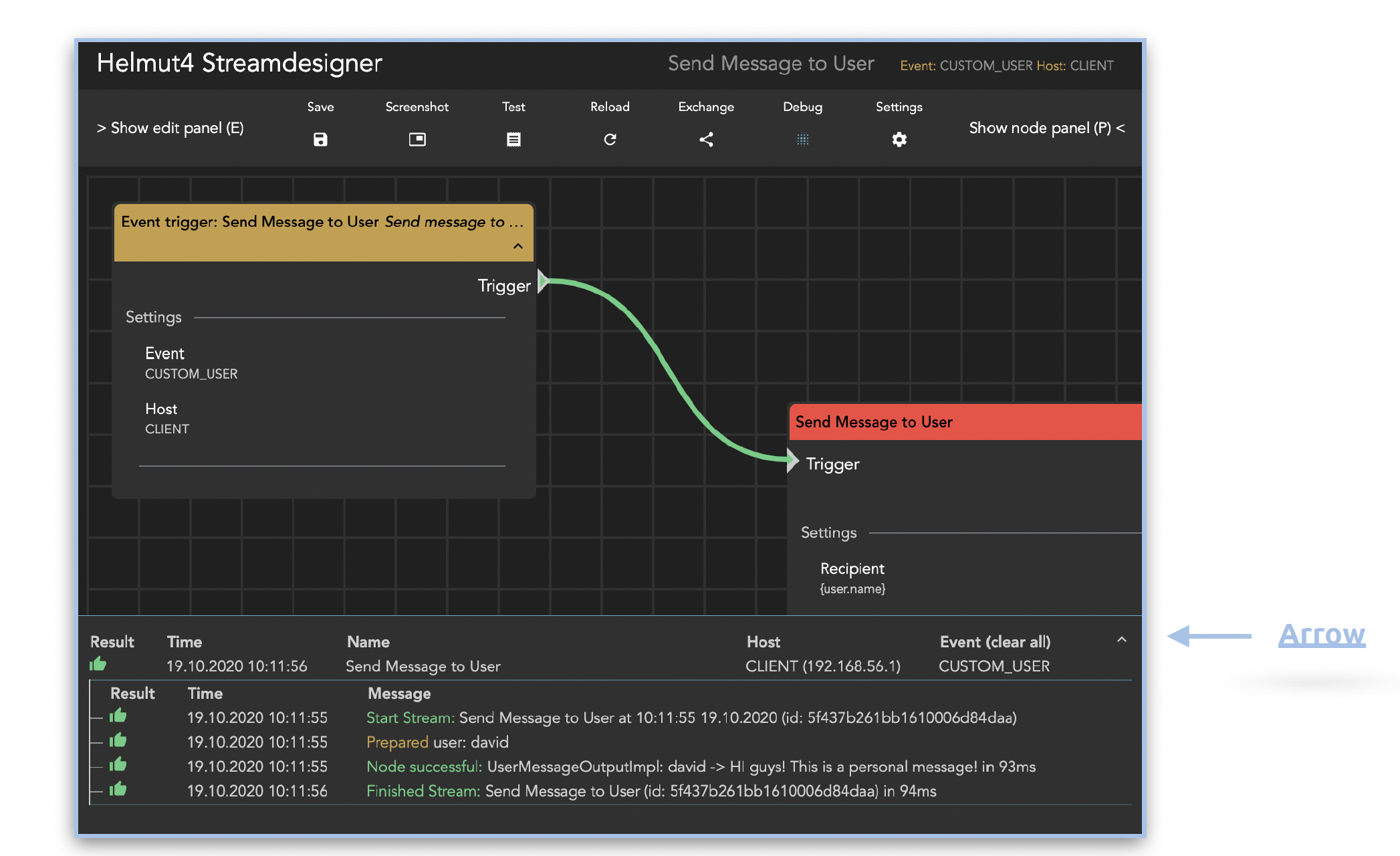
Once the stream designer is opened and a particular stream will be created, the "Debug" icon in the upper bar can be activated to display the stream debugger. This open a debug overlay that shows the realtime output of streams (during execution), limited to the currently open one. The size of the debug overlay can be extended to full screen by clicking on the arrow on the right side.
Debugger in Streamdesigner
Additionally it is possible to access a global view of the stream debugger to monitor and control all processes according to stream. For that the "Debug Streams" button which can be found in the Streams tab of FX, IO, CO and HK should be clicked. This leads to the action that the stream debugger will be opened.
Debug Streams Button
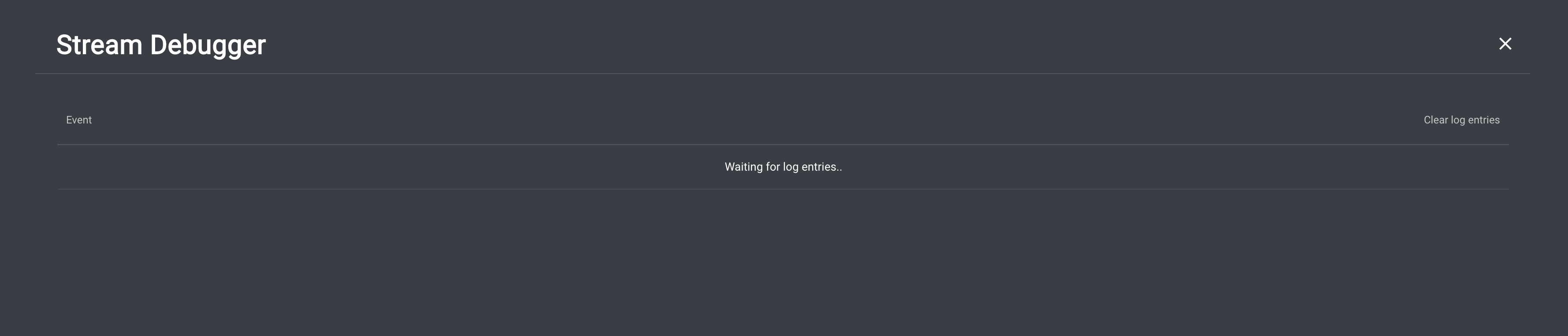
Global Stream Debugger
Check [Debug Streams](/helmut4-releases/v4.6.0/helmut4-components/helmutfx/streams/main-functionalities/debug-streams.md) for more information.