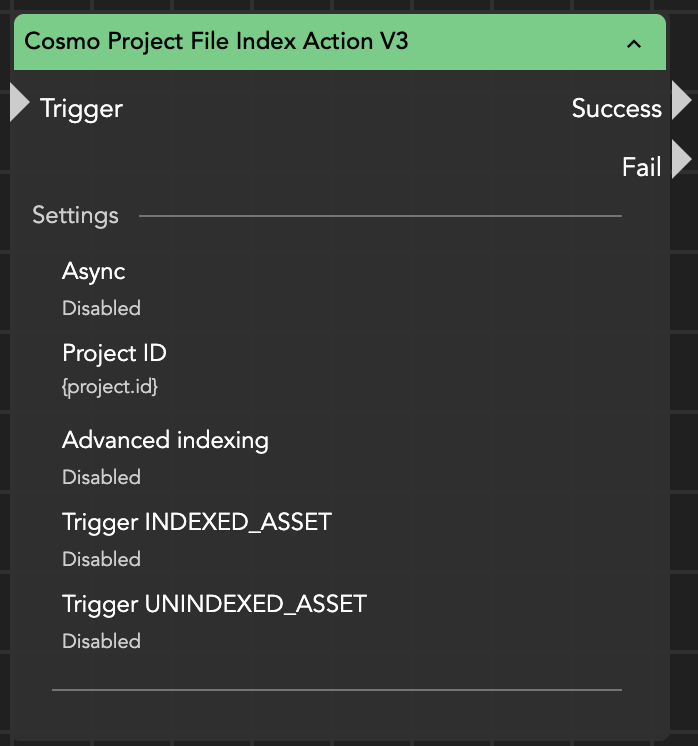
Cosmo Project File Index Action
Cosmo Project File Index Action V2
With V3, indexing is no longer restricted to the Cosmo server.
The indexing process now runs on the host that executes the stream:
Client stream → indexing performed by the client workstation
Server stream → indexing performed by the server
Previous V2 behavior:
Indexing was always performed by the Cosmo server container
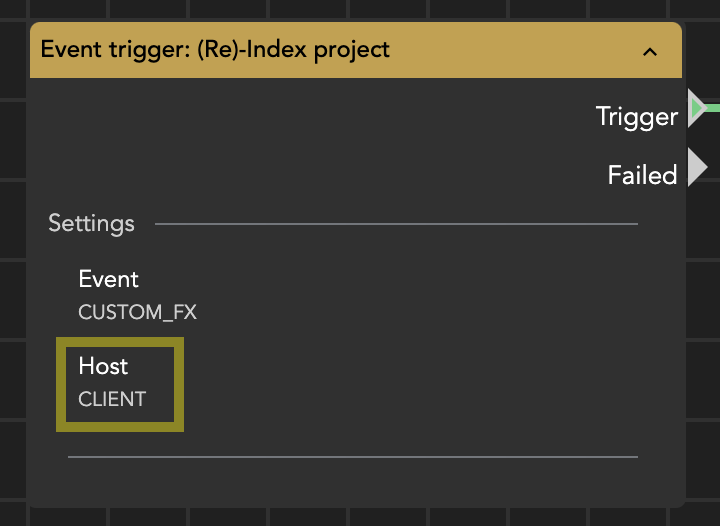
With the previous V2 version of the node, indexing was always performed by the Cosmo server container.
Because of this change, older index nodes should be replaced as soon as possible.
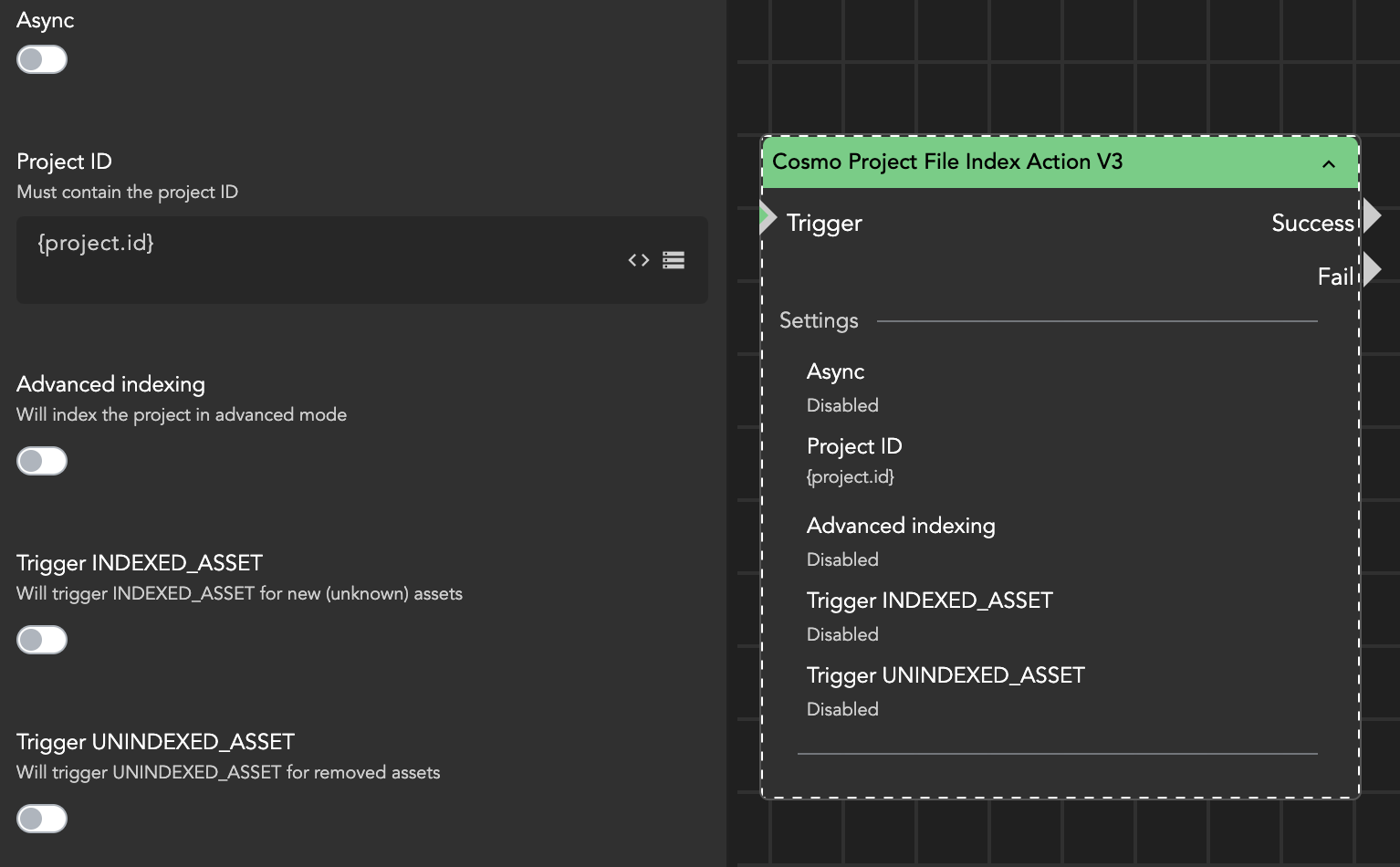
The Cosmo Project File Index Action node indexes a project file and synchronizes its structure with Cosmo.
During indexing, the project file is read and its internal structure — bins, assets, and sequences/compositions — is transferred to Cosmo. Cosmo then creates a virtual representation of the project, allowing its contents to be viewed in the Cosmo panel and on the web interface.
Requires Helmut Client 4.2.0.28 or newer
When to Use
This node should be used whenever Cosmo needs to understand the real content of a project file, for example:
after project creation
after major editorial changes
after unlocking a project
when assets were imported outside of Cosmo workflows
after migration or manual relinking
Important Recommendation
Projects should preferably be indexed while closed.
Adobe applications (Premiere Pro / After Effects) keep unsaved timeline changes in RAM. If indexing occurs while the project is open, recently created bins, clips, or sequences may not be detected until the project is saved.
Supported Applications
Adobe Premiere Pro & After Effects
Full structure indexing
Bins
Assets
Sequences / Compositions
Visible in panel and web UI
Pro Tools
Session must be open
Only track information is indexed
Linked media files are not referenced
What Indexing Updates
Indexing extracts and updates:
Bin structure and names
Assets and asset metadata
Sequences / compositions
Changes compared to the previous Cosmo state
Cosmo automatically updates its database to match the project.
Input Parameters
Project ID The ID of the project to be indexed.
Advanced Indexing Performs a deeper analysis of sequences. This increases indexing time but collects additional data:
source and destination timecodes
track usage per clip
extended asset metadata
This data is stored in the database (not directly visible in the UI). Useful for reporting workflows (e.g., asset or sequence reports).
Trigger INDEXED_ASSET Triggers the INDEXED_ASSET event for newly discovered assets.
Use this if assets may enter the project without using Cosmo ingestion (manual import, third-party APIs, disconnected panel, etc.). If disabled, assets are simply registered without triggering additional workflows.
Trigger UNINDEXED_ASSET Triggers the UNINDEXED_ASSET event when assets are removed from the project.
This can be used for automation such as orphaned-media detection or cleanup workflows.

Recommended Trigger Usage
Check your streams especially for:
CUSTOM_FX (Re-index Project)
Housekeeper workflows
Important: The Unlock Project trigger should not run on a client host. If the user closes the Helmut client or website before indexing finishes, the process may stop.
Synchronization Logic
Indexing compares the current project content with the Cosmo database.
New clips → added to Cosmo
Removed clips → removed from project reference
Changed structure → updated in Cosmo
Advanced Indexing — Use Case
Enable Advanced Indexing when you need reporting or analysis workflows, for example:
sequence usage reports
asset usage tracking
compliance documentation
Otherwise, keep it disabled to reduce processing time.
Important Behavior Notes
Offline or Inaccessible Assets
If the executing host (client or server) cannot access the media location:
file size
metadata
date information
will not update. The asset retains its last known online/offline status.
Project Size Calculation
Project size is recalculated when:
assets are added via Cosmo Add Asset to Project Action
a successful indexing is performed
The size equals the total size of all referenced media files.

Virtual (Ingest) Projects
For projects that were never opened:
size is calculated from assets added via ingestion
after manual indexing → project size becomes 0
Reason: the project contains no real linked media yet; assets are still unsynchronized placeholders.
To determine the actual file size and modification date of an asset, the Cosmo Update Asset Size and Date node can be used.
This node scans the referenced media file on storage and updates the corresponding information in the Cosmo database.

Practical Summary
This node is essentially the truth synchronization between the editing software and Cosmo.
Ingest nodes tell Cosmo what should exist
Indexing tells Cosmo what actually exists
If your workflows ever look “wrong” in Cosmo (missing clips, duplicates, wrong bins), the issue is almost always missing or improperly placed indexing — not the ingest.
Last updated